Publish your site
Publish your website safely after checking SEO, mobile layout, forms, tracking, and the live conversion path.
Where to find it in Launchmiga
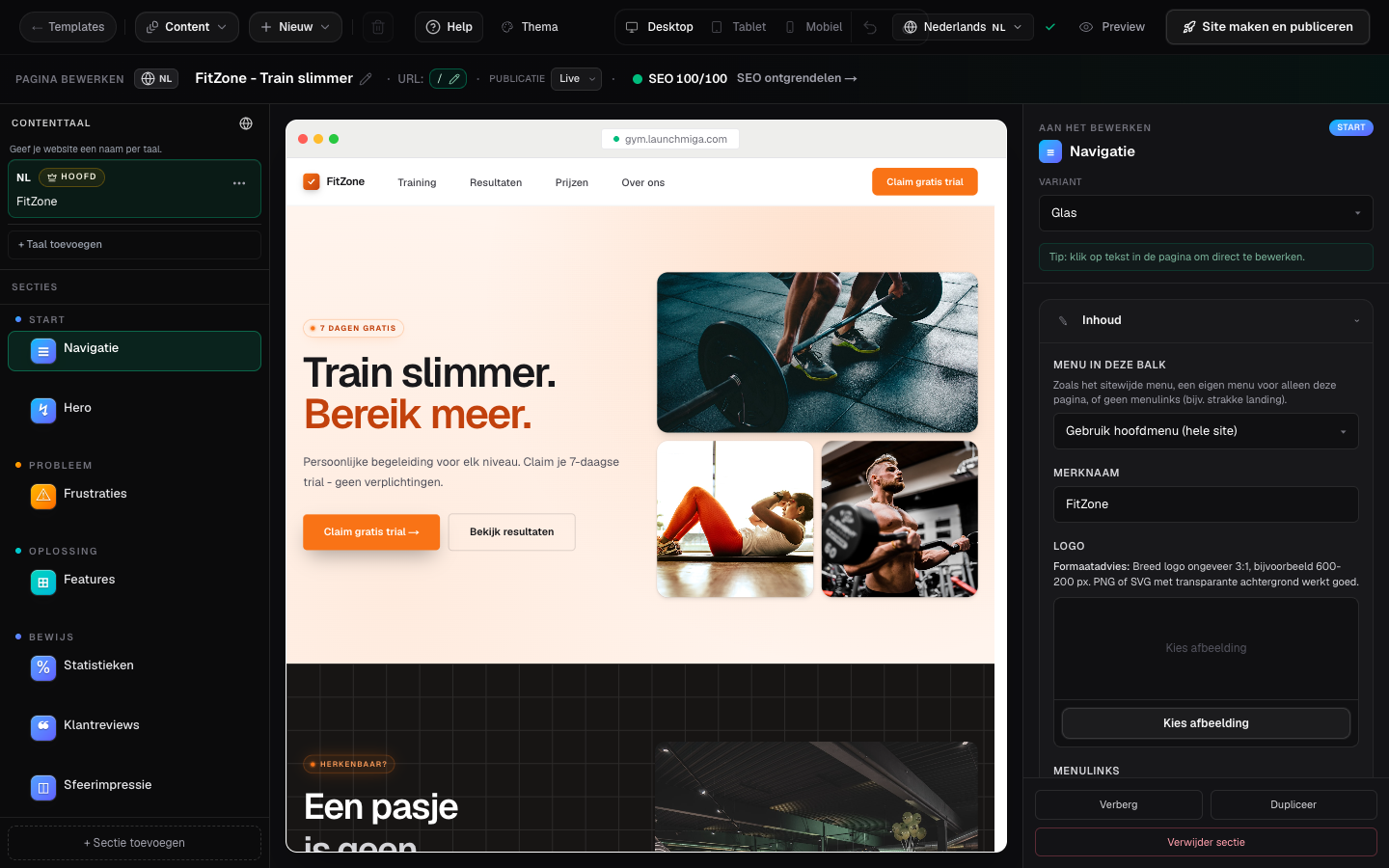
Builder top bar > Publish (green button on the right).
Pre-publish checklist
Before you publish, check the pages the same way a potential member would. On mobile, can they understand the offer in the first screen? Is the CTA visible? Does the form work? Are prices, location, schedule, and FAQ clear? Are the SEO title and meta description written for a real search query? Also confirm that draft pages are intentionally hidden. Only published pages should be linked in navigation or included in search indexing. If a page is not ready, keep it as draft until the content is useful and complete.
After publishing
Open the live URL in a fresh tab and submit a test lead. Check the confirmation message, lead inbox, notification email, and any tracking events. Then test the site on a phone. Most trial requests for gyms and studios come from mobile visitors, so the mobile path matters more than the desktop preview. If you connected a custom domain, publish once after DNS is connected. This ensures the latest static HTML, SEO metadata, forms, and assets are available on the final domain.
- 1
Review draft pages
In the page menu, draft pages show a badge. Only published pages appear on the live site. Practical example 1: always test the change on mobile and desktop, and check whether the main CTA is still visible and logical. When you finish this step, read the page as a visitor who searched for a local fitness solution. The copy should answer what this is, who it is for, why it is trustworthy, and what to do next.
- 2
Click Publish
Confirm publish. Launchmiga builds static HTML and updates your live host or custom domain. Practical example 2: always test the change on mobile and desktop, and check whether the main CTA is still visible and logical. When you finish this step, read the page as a visitor who searched for a local fitness solution. The copy should answer what this is, who it is for, why it is trustworthy, and what to do next.
- 3
Open the live URL
Use Preview live or your domain link from Admin > Sites to verify forms and mobile layout. Practical example 3: always test the change on mobile and desktop, and check whether the main CTA is still visible and logical. When you finish this step, read the page as a visitor who searched for a local fitness solution. The copy should answer what this is, who it is for, why it is trustworthy, and what to do next.