
Builder overview
Understand the Launchmiga builder: pages, sections, mobile preview, theme settings, SEO tools, forms, and publish flow.
Where to find it in Launchmiga
Admin > Sites > Open builder on any site.
How the builder is organized
Launchmiga websites are section-based. A page is made from blocks such as navigation, hero, problem cards, feature grid, pricing cards, FAQ, CTA banner, lead form, and footer. This makes editing safer than freeform design because every section already has responsive behavior, SEO-friendly text areas, and conversion-focused structure. Use the left sidebar for page and section order. Use the canvas for direct text and image edits. Use the right panel for structured fields such as CTA labels, form fields, card items, images, links, and toggles. Use the top bar for theme, device preview, SEO, languages, undo, redo, and publish.
Best workflow for SEO-friendly pages
First edit the visible content: headline, intro, sections, proof, pricing, FAQ, and form. Then open the SEO panel and make sure the title and description match the visible page. Finally preview mobile and publish. This order keeps the SEO metadata honest and aligned with what visitors actually see. For each page, choose one search intent. A homepage can target the main local keyword. A service page can target a specific class or offer. A blog post can answer one question. Avoid mixing too many unrelated keywords on one page.
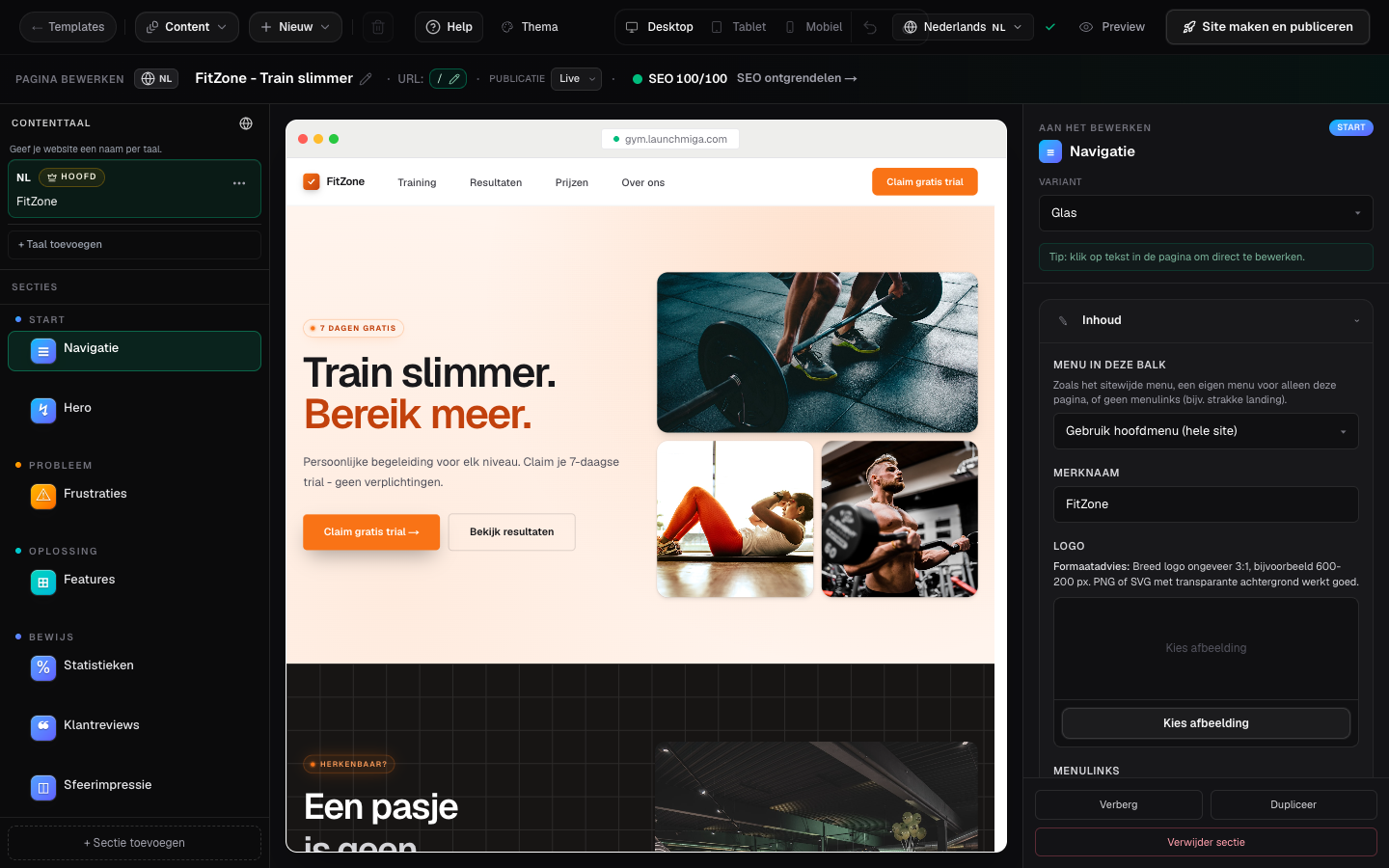
- 1
Left sidebar: pages and sections
Switch pages, reorder sections, and add new blocks from one place. Practical example 1: always test the change on mobile and desktop, and check whether the main CTA is still visible and logical. When you finish this step, read the page as a visitor who searched for a local fitness solution. The copy should answer what this is, who it is for, why it is trustworthy, and what to do next.
- 2
Canvas: click to edit
Click any text or image on the preview. Edits apply to the active language locale. Practical example 2: always test the change on mobile and desktop, and check whether the main CTA is still visible and logical. When you finish this step, read the page as a visitor who searched for a local fitness solution. The copy should answer what this is, who it is for, why it is trustworthy, and what to do next.
- 3
Top bar: theme, SEO, publish
Theme opens colors and favicon. SEO opens per-page search settings. Help (? ) opens this knowledge base. Practical example 3: always test the change on mobile and desktop, and check whether the main CTA is still visible and logical. When you finish this step, read the page as a visitor who searched for a local fitness solution. The copy should answer what this is, who it is for, why it is trustworthy, and what to do next.