
Add and edit sections
Insert new blocks and update text, images, and CTAs on any page.
Where to find it in Launchmiga
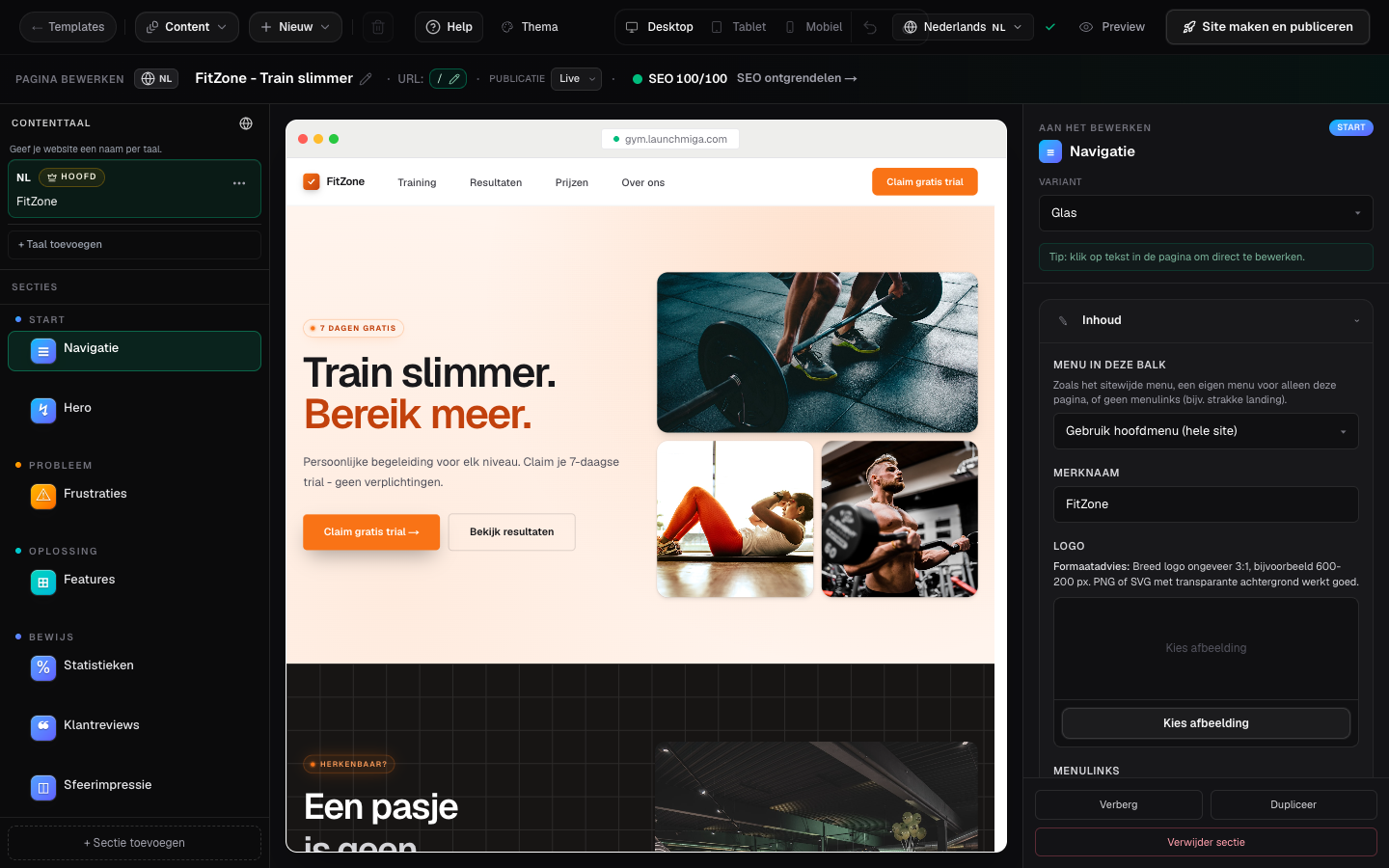
Builder left sidebar > + Add section, or the + button between sections on the canvas.
Why add and edit sections matters
Insert new blocks and update text, images, and CTAs on any page. For a gym, yoga studio, pilates studio, personal trainer, CrossFit box, or other fitness business, this task is part of the full website conversion path: visitors need to understand the offer, trust the business, and know exactly what to do next. Use this page as a practical manual, not just a quick checklist. The workflow lives in Builder left sidebar > + Add section, or the + button between sections on the canvas.. When you update this part of the site, also check the mobile version, the primary CTA, the live visitor experience, and whether the page still supports your main goal: trial requests, intro class bookings, contact messages, or membership enquiries.
SEO, clarity, and conversion best practices
Keep the visible copy specific and searchable. Use plain phrases your customers would type into Google, such as gym in [city], yoga studio [city], personal trainer [city], pilates classes, trial class, membership prices, class schedule, beginner friendly training, or local fitness coaching. Relevant internal search tags for this guide include: section, add, edit, block. After you make the change, review the surrounding page. The visitor should see a clear headline, supporting proof, useful details, and a next step. For this workflow, focus on Open Add section, Choose a layout and Click to edit on canvas. If the task changes what appears on a published page, publish again and test the live URL in a fresh browser tab.
- 1
Open Add section
Choose a section type, such as prices, FAQ, reviews or a lead form. Flowmiga integrations and individual building blocks have their own tabs. Practical example 1: on a gym landing page, place the hero and proof section first, then pricing, FAQ, and lead form. Visitors should understand the offer before you ask for a trial request. When you finish this step, read the page as a visitor who searched for a local fitness solution. The copy should answer what this is, who it is for, why it is trustworthy, and what to do next.
- 2
Choose a layout
Compare the four layouts for each standard section. Previews use your page typography, colors and available photos. Existing page content is reused where possible; replace any remaining example text after insertion. Use Building blocks for a separate heading, text, image, button or divider. Practical example 2: on a gym landing page, place the hero and proof section first, then pricing, FAQ, and lead form. Visitors should understand the offer before you ask for a trial request. When you finish this step, read the page as a visitor who searched for a local fitness solution. The copy should answer what this is, who it is for, why it is trustworthy, and what to do next.
- 3
Click to edit on canvas
Select the section. Editable fields highlight. Use the right panel for structured inputs. Practical example 3: on a gym landing page, place the hero and proof section first, then pricing, FAQ, and lead form. Visitors should understand the offer before you ask for a trial request. When you finish this step, read the page as a visitor who searched for a local fitness solution. The copy should answer what this is, who it is for, why it is trustworthy, and what to do next.