Undo, redo, and autosave
Recover mistakes and trust that your work saves automatically.
Where to find it in Launchmiga
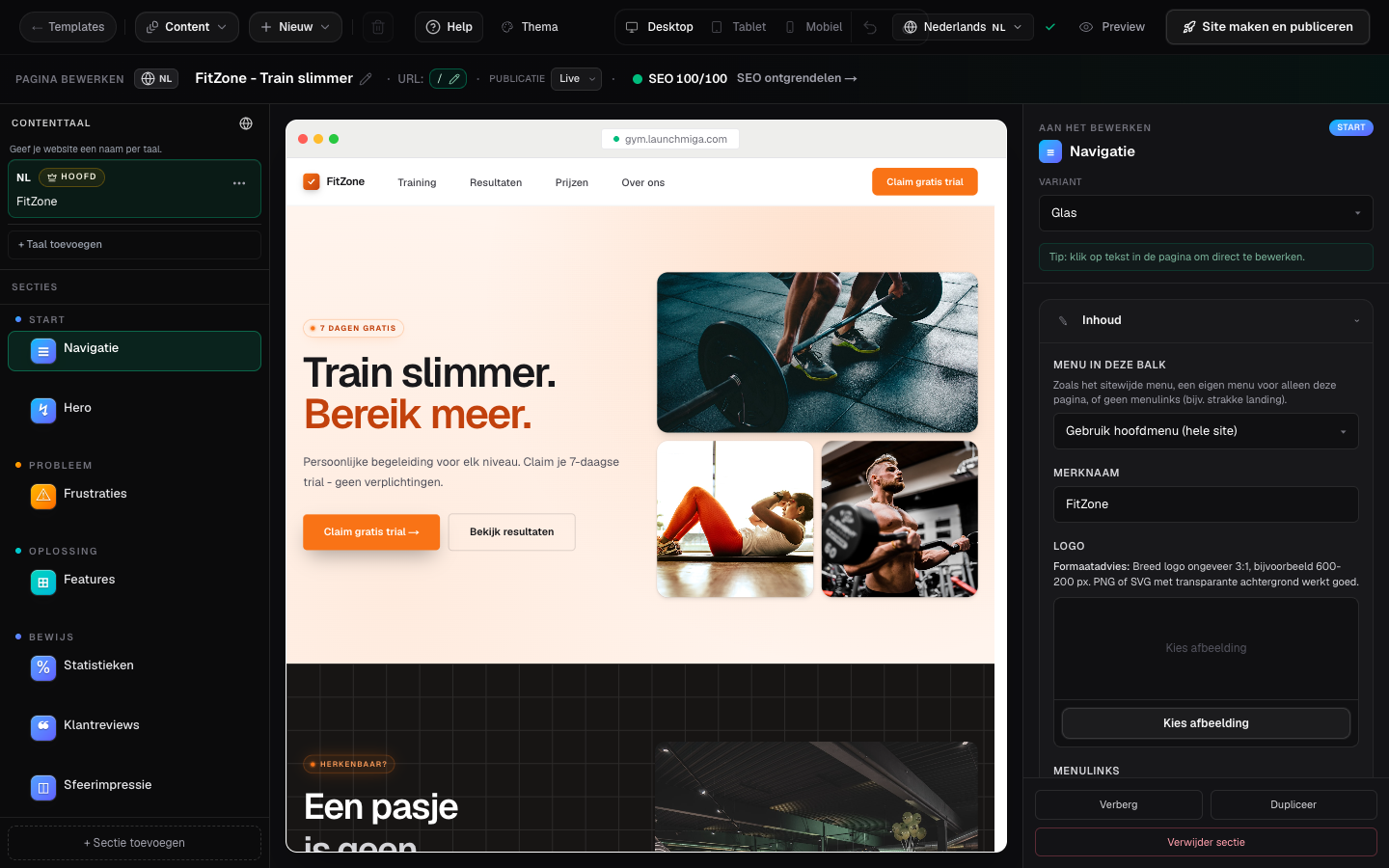
Builder top bar > undo/redo icons next to device preview.
Why undo, redo, and autosave matters
Recover mistakes and trust that your work saves automatically. For a gym, yoga studio, pilates studio, personal trainer, CrossFit box, or other fitness business, this task is part of the full website conversion path: visitors need to understand the offer, trust the business, and know exactly what to do next. Use this page as a practical manual, not just a quick checklist. The workflow lives in Builder top bar > undo/redo icons next to device preview.. When you update this part of the site, also check the mobile version, the primary CTA, the live visitor experience, and whether the page still supports your main goal: trial requests, intro class bookings, contact messages, or membership enquiries.
SEO, clarity, and conversion best practices
Keep the visible copy specific and searchable. Use plain phrases your customers would type into Google, such as gym in [city], yoga studio [city], personal trainer [city], pilates classes, trial class, membership prices, class schedule, beginner friendly training, or local fitness coaching. Relevant internal search tags for this guide include: undo, redo, autosave, history. After you make the change, review the surrounding page. The visitor should see a clear headline, supporting proof, useful details, and a next step. For this workflow, focus on Undo with keyboard or buttons and Watch the save indicator. If the task changes what appears on a published page, publish again and test the live URL in a fresh browser tab.
- 1
Undo with keyboard or buttons
Press Cmd+Z (Mac) or Ctrl+Z (Windows). Redo with Shift+Cmd+Z or the redo button. Practical example 1: always test the change on mobile and desktop, and check whether the main CTA is still visible and logical. When you finish this step, read the page as a visitor who searched for a local fitness solution. The copy should answer what this is, who it is for, why it is trustworthy, and what to do next.
- 2
Watch the save indicator
Saving / Saved appears near Publish. Wait for Saved before closing the tab. Practical example 2: always test the change on mobile and desktop, and check whether the main CTA is still visible and logical. When you finish this step, read the page as a visitor who searched for a local fitness solution. The copy should answer what this is, who it is for, why it is trustworthy, and what to do next.