Create your first site
Create a new fitness website from a conversion-ready template, then prepare it for local SEO, mobile visitors, and lead capture.
Where to find it in Launchmiga
Admin > Sites > New site, or Templates > Use template.
Before you create the site
Write down the primary search phrase your new website should rank for. For example: "gym in Eindhoven", "yoga studio Amsterdam", "personal trainer Rotterdam", or "pilates reformer Utrecht". This phrase should guide your template choice, homepage headline, SEO title, meta description, and first CTA. Also decide the primary conversion action before you start editing. A gym may want trial requests, a yoga studio may want intro class bookings, and a trainer may want intake calls. Launchmiga works best when the template, navigation, forms, and CTA labels all point to one main action.
Choose template first, blank page only when needed
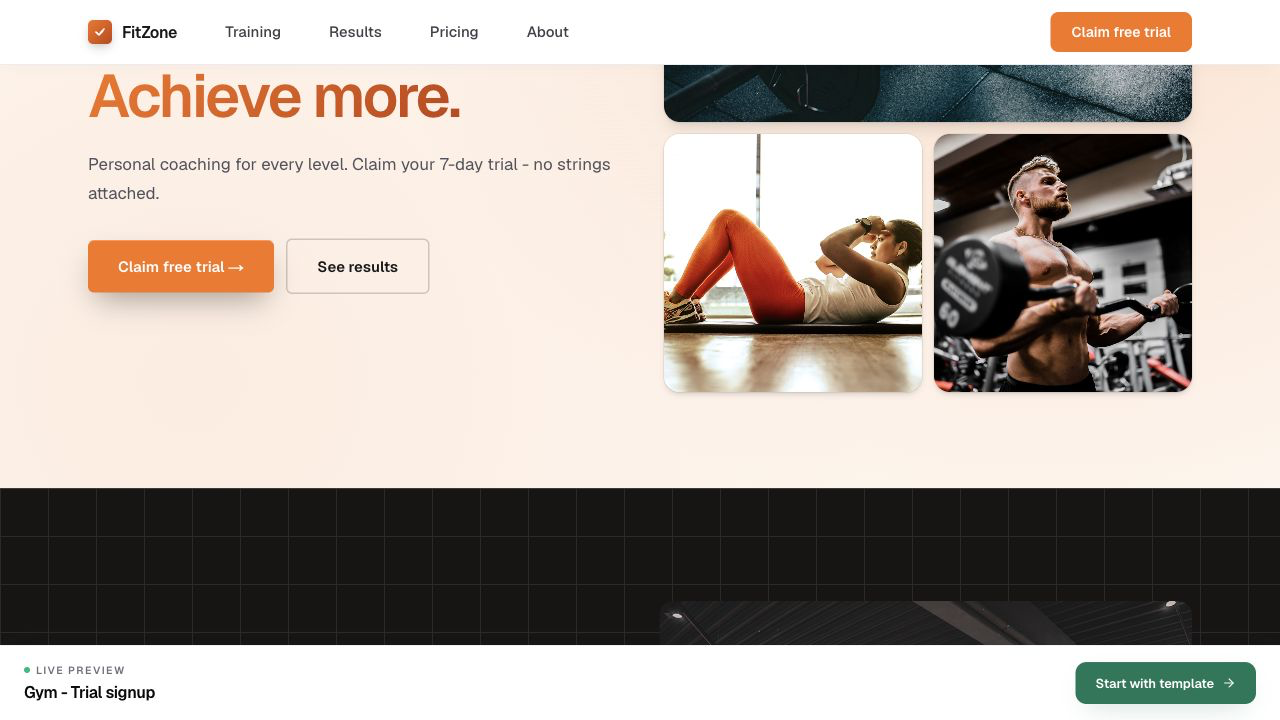
For SEO and conversion, starting from a template is usually better than starting blank. Templates already include the sections Google and visitors expect: a descriptive hero, local proof, service explanation, pricing or offer blocks, FAQs, and a form. A blank flow is useful only when you already have a custom structure written out. After creating the site, immediately rename it internally and set the public site name. The internal name helps you manage multiple websites in Admin. The public site name appears in SEO titles, browser tabs, and search previews.
- 1
Open Sites
In the left admin menu, click Sites. You see every site in your account. Practical example 1: always test the change on mobile and desktop, and check whether the main CTA is still visible and logical. When you finish this step, read the page as a visitor who searched for a local fitness solution. The copy should answer what this is, who it is for, why it is trustworthy, and what to do next.
- 2
Choose a template
Click New site or browse Templates. Pick the industry closest to your business (gym, yoga, personal trainer, etc.). Practical example 2: always test the change on mobile and desktop, and check whether the main CTA is still visible and logical. When you finish this step, read the page as a visitor who searched for a local fitness solution. The copy should answer what this is, who it is for, why it is trustworthy, and what to do next.
- 3
Name your site
Enter an internal name you recognize in the dashboard. Visitors see the public site name from SEO settings. Practical example 3: always test the change on mobile and desktop, and check whether the main CTA is still visible and logical. When you finish this step, read the page as a visitor who searched for a local fitness solution. The copy should answer what this is, who it is for, why it is trustworthy, and what to do next.