How to use the Navigation section
Add, edit, and style the Navigation block on any page in the builder.
Where to find it in Launchmiga
Open your site in the builder. Click + Add section in the left panel or between sections on the canvas.
When to use the Navigation section
Use the Navigation section when that block supports the visitor's next decision. On a fitness website, every section should earn its place: it should explain the offer, remove doubt, show proof, compare options, answer a question, or move visitors toward a trial request, intro class, contact form, booking widget, or membership enquiry. Before adding this section, look at the page around it. A strong page usually moves from hero, problem, solution, proof, pricing or offer, FAQ, and conversion form. The Navigation section should strengthen that flow instead of interrupting it.
SEO and conversion tips
For SEO, write the section copy in normal customer language. Include concrete phrases where they fit naturally: gym in [city], yoga classes, personal training, reformer pilates, martial arts trial class, beginner friendly training, pricing, schedule, results, reviews, or free trial. Do not stuff keywords. The goal is to make the page clearer for visitors and easier for search engines to understand. After editing, preview mobile and desktop. Check that headings are readable, CTAs still point to the right form or page, and the section does not push the main conversion too far down the page.
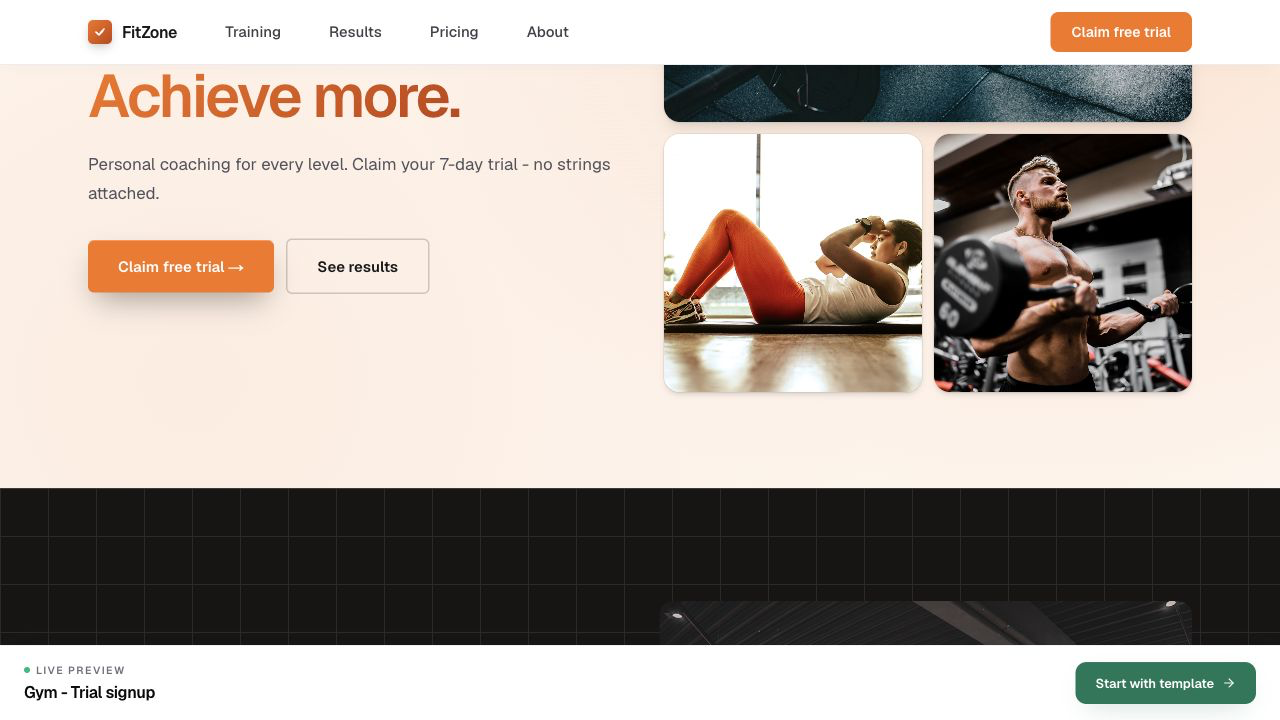
- 1
Open the section picker
In the builder sidebar, choose Add section. Browse categories or search for the section name. Practical example 1: always test the change on mobile and desktop, and check whether the main CTA is still visible and logical. When you finish this step, read the page as a visitor who searched for a local fitness solution. The copy should answer what this is, who it is for, why it is trustworthy, and what to do next.
- 2
Insert Navigation
Click the Navigation tile. It is added below the selected section or at the end of the page. Practical example 2: always test the change on mobile and desktop, and check whether the main CTA is still visible and logical. When you finish this step, read the page as a visitor who searched for a local fitness solution. The copy should answer what this is, who it is for, why it is trustworthy, and what to do next.
- 3
Edit content
Click text and images on the canvas. The right panel shows fields for the active section. Practical example 3: always test the change on mobile and desktop, and check whether the main CTA is still visible and logical. When you finish this step, read the page as a visitor who searched for a local fitness solution. The copy should answer what this is, who it is for, why it is trustworthy, and what to do next.
- 4
Adjust style
Use the Style tab for padding, background, and width presets without touching code. Practical example 4: always test the change on mobile and desktop, and check whether the main CTA is still visible and logical. When you finish this step, read the page as a visitor who searched for a local fitness solution. The copy should answer what this is, who it is for, why it is trustworthy, and what to do next.
Tips
Reorder or hide
Drag sections in the left list. Use the eye icon to hide a section without deleting it.