Welcome to Launchmiga
A complete overview of how gyms, studios, and trainers use Launchmiga to build SEO-friendly websites that generate trial requests.
Where to find it in Launchmiga
After sign-in you land on Admin > Dashboard with your sites and quick actions.
What Launchmiga is built for
Launchmiga is built for fitness businesses that need a website to do more than look professional. A gym, yoga studio, pilates studio, personal trainer, CrossFit box, or martial arts school needs pages that can be found in Google and that turn visitors into trial requests, intro bookings, contact messages, or memberships. The platform is template-first because most fitness businesses need a proven structure quickly: local SEO, clear service pages, trust sections, pricing, FAQs, and forms. You still control the copy, images, colors, pages, and languages, but the starting point is already built around conversion.
The fastest path from blank account to live website
Start with the template closest to your business model. Do not choose only by color. Choose by funnel: does it have the right hero, proof, pricing, CTA, FAQ, and lead form for your offer? Then replace generic copy with local search phrases such as "gym in Rotterdam", "yoga studio in Amsterdam", "personal trainer in Utrecht", or "reformer pilates in Haarlem". After the homepage is clear, configure SEO titles, meta descriptions, social preview images, forms, notification email, and tracking. Publish only after you have tested the mobile layout and submitted a test lead. This keeps the launch simple and avoids the common mistake of publishing a nice page that does not collect leads.
- 1
Pick a proven template
Go to Templates in the admin menu or browse website-templates on the marketing site. Each template is built for trials, pricing, and lead capture. Practical example 1: always test the change on mobile and desktop, and check whether the main CTA is still visible and logical. When you finish this step, read the page as a visitor who searched for a local fitness solution. The copy should answer what this is, who it is for, why it is trustworthy, and what to do next.
- 2
Customize in the builder
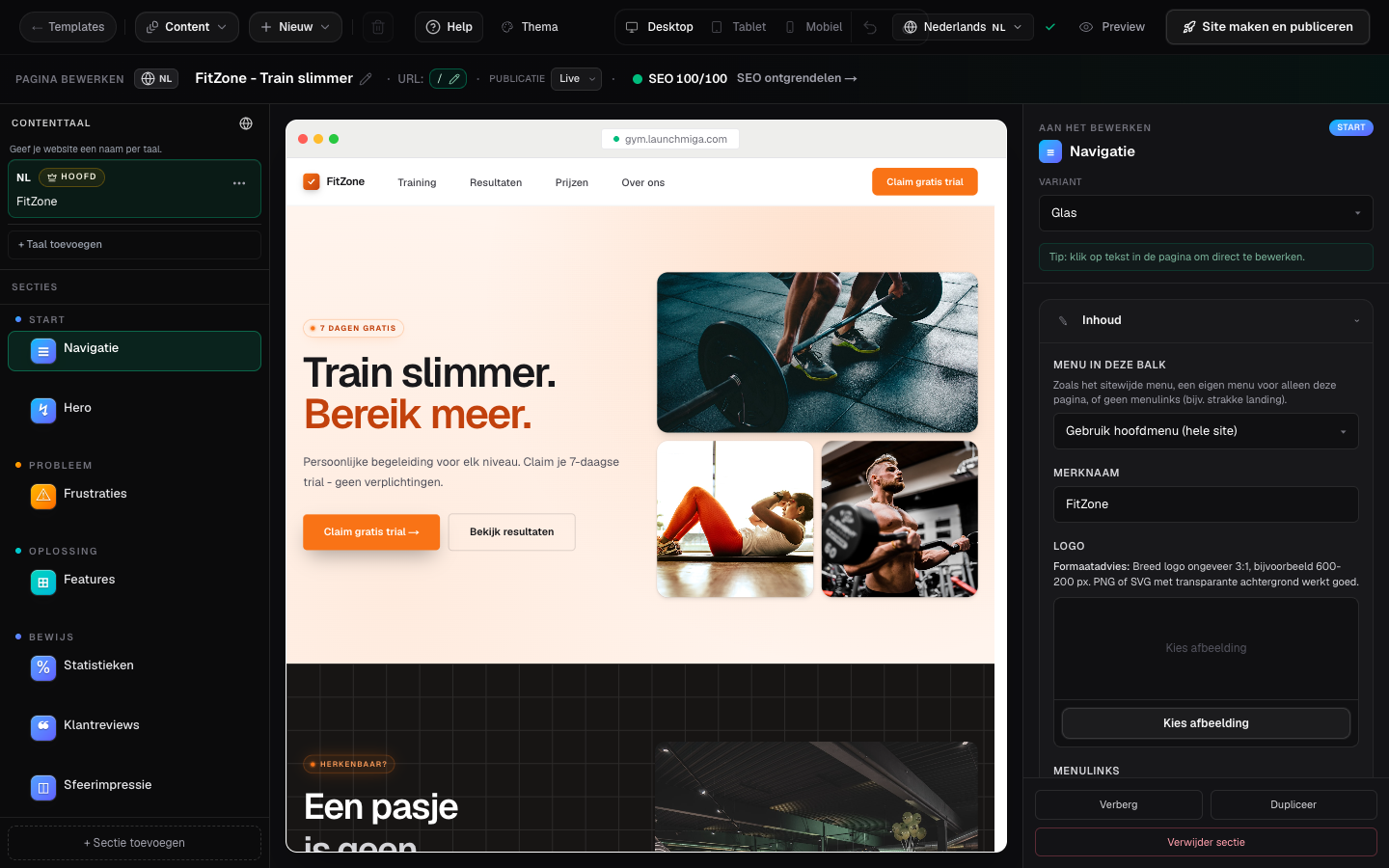
Edit text, swap photos, adjust colors in Theme, and add your logo. Changes autosave while you work. Practical example 2: always test the change on mobile and desktop, and check whether the main CTA is still visible and logical. When you finish this step, read the page as a visitor who searched for a local fitness solution. The copy should answer what this is, who it is for, why it is trustworthy, and what to do next.
- 3
Publish to go live
Use Publish in the builder top bar. Connect a custom domain later from Domains in site settings. Practical example 3: always test the change on mobile and desktop, and check whether the main CTA is still visible and logical. When you finish this step, read the page as a visitor who searched for a local fitness solution. The copy should answer what this is, who it is for, why it is trustworthy, and what to do next.